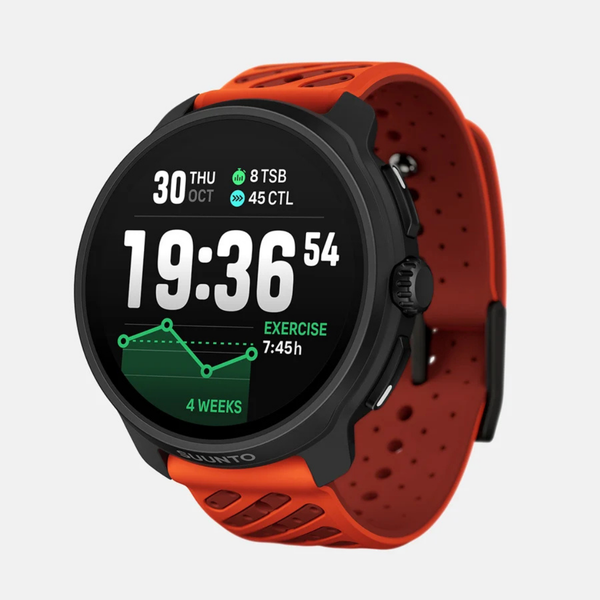


Your Suunto watch comes equipped with a wide range of pre-defined sport modes and shows the most relevant data during your exercise. Nevertheless, you can also create custom sport modes with the Suunto app.
How to create a new custom sport mode?
- Connect your watch to the Suunto app and select the Sport mode customization section.
- Tap Create sport mode.
- On the Select sport pop-up, you can select the type of activity.
Tip: You can create more than one custom sport mode for the same sport. For example, you can have a custom running mode for races and one for the recovery sessions.

Personalize the layout and the information shown on the screen:
- To change the display layout, tap Change, and select the layout you prefer.

2. To change the information, tap a field shown in the list and select the training data you prefer.

Find your new custom sport mode in the shortlist. Suunto app will automatically sync your new custom sport mode to your watch. Open Exercise /Suunto Wear app on your watch and you will already have the customized sport mode available for you to try out.
How to edit a custom sport mode?
Unlike pre-defined sport modes, custom sport modes are highlighted with a colored icon in the shortlist in the Suunto app and can be edited:
- Tap the sport mode you wish to customize.
- Personalize the layout and data fields as described above.
Suunto app will automatically sync the changes to your watch after you have finished editing the information.

How to manage the shortlist in your Suunto watch?
The shortlist in your watch reflects the sport modes that you have recently used. Both custom and pre-defined sport modes can be removed from the shortlist, but you can edit only custom sport modes.
To remove sport modes from the list, tap Edit next to Shortlist in the watch. Remove the sport modes you don’t need.

Note: You cannot delete all the sport modes in the shortlist. You need to have at least one sport mode available.